A good signal executed badly is a losing trade. We have watched it happen more times than we can count: the analysis was right, the entry zone was respected, price ran straight to the third take profit, and the follower still lost money because they bought 1.0 lots of gold on a $600 account, or typed the stop loss into the take profit field, or sat on a requote for ninety seconds while the entry sailed away. If you want to know how to execute a signal on MT4 or MT5 properly, the honest answer is that it's a mechanical skill, like parallel parking. Nobody is born with it. Everybody who practises it gets it.
This guide is the practice manual. We're going to walk through both platforms, desktop and mobile, because the split in our own subscriber base is roughly what you'd expect in 2025: most people execute from their phone on the MT5 app, and a stubborn minority (including half our desk, if we're honest) still swears by desktop MT4. Both work. Both have traps. The traps are different on each, and the gold-specific ones are nastier than anything you'll meet on EURUSD.
One thing before we start. Nothing here makes trading safe. Gold is a fast, high-risk instrument, leveraged CFDs magnify both directions, and flawless execution of a losing signal still loses. What execution skill buys you is this: when a trade loses, it loses the amount you planned, and when it wins, you actually collect. That is worth more than most people think.
MT4 vs MT5: what actually changes for signal execution
The internet is full of MT4-versus-MT5 comparisons written by people who have never traded either. For executing signals, the differences that matter fit in one table.
| What you're doing | MT4 | MT5 |
|---|---|---|
| Market order | New Order window, "Market Execution" | Same idea, slightly different layout |
| Pending order types | 4 (buy/sell limit, buy/sell stop) | 6 (adds buy stop limit, sell stop limit) |
| Partial close | Close window, edit the volume field | Same, plus cleaner position handling |
| Netting vs hedging | Hedging only | Broker chooses; retail accounts are usually hedging |
| Mobile app quality | Dated, still works | Actively maintained, better order screens |
| One-click trading | Yes | Yes |
Two of those rows deserve a sentence each. The extra MT5 pending types (stop limit orders) sound useful and almost never matter for signal followers; ignore them. The netting-versus-hedging distinction can genuinely bite: on a netting account, buying 0.10 lots while you're already short 0.10 lots closes the short instead of opening a hedge. If you follow signals that occasionally fire in both directions, check with your broker that your MT5 account is set to hedging mode before your first trade, not after your first surprise.
Everything else, the charts, the indicators, the colour schemes, is decoration. A signal follower needs exactly three skills on either platform: open an order with the right size and levels, modify a live position, and close part or all of it. That's the whole syllabus.
And if you're still choosing a broker to run either platform on, the choice matters more for gold than for majors, because spread and slippage on XAUUSD vary wildly between firms. We compared the ones we work with in our Exness vs XM vs Vantage gold breakdown, and the differences in typical gold spread alone can be worth more than a signal service's fee over a year.
What a signal gives you, and what the order window wants
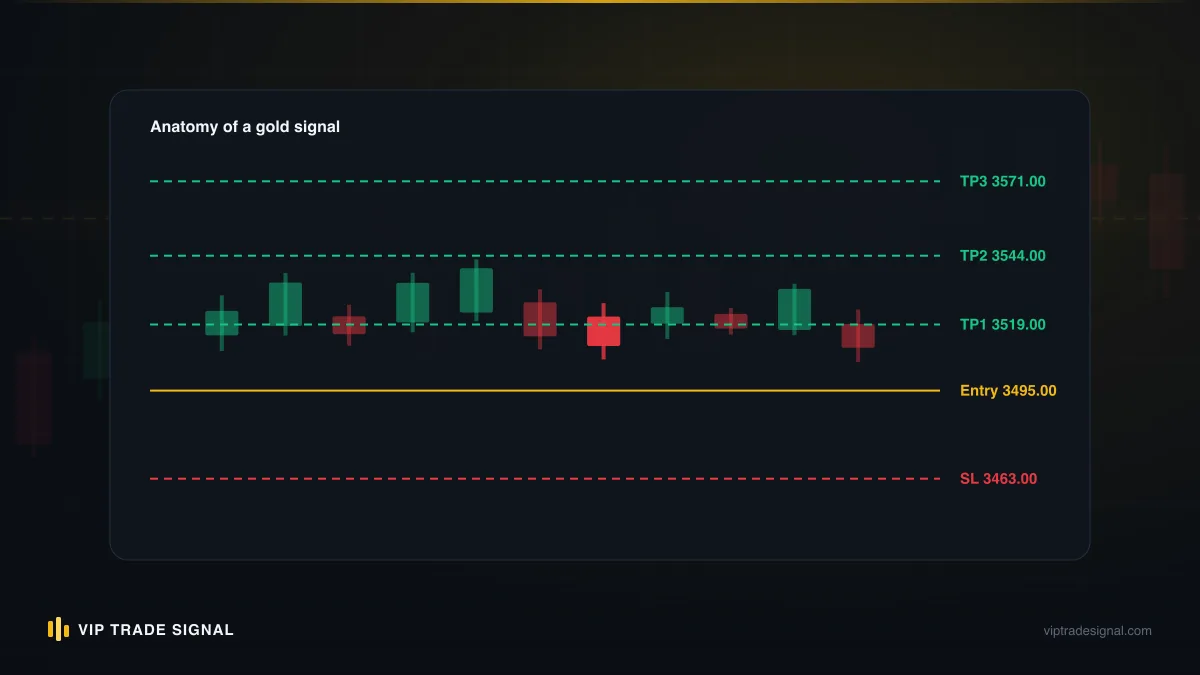
Before touching the platform, look at what you're translating. A properly formatted gold signal, the kind we publish on our signals service, carries five numbers: direction (buy or sell), an entry price or zone, a stop loss, and one or more take profits. Say the signal reads:
SELL XAUUSD at 3,342–3,346. SL 3,353. TP1 3,334, TP2 3,325, TP3 3,310.
The order window wants: symbol, volume (lot size), order type, price (for pendings), stop loss, take profit. Notice the mismatch. The signal has three take profits; the order window has one TP field. The signal has an entry zone; the window wants a single price. And the signal says nothing about volume at all, because lot size is your job, not the provider's, since only you know your account balance and risk tolerance.
That translation, from five signal lines to six order fields, is the entire skill. We wrote about the decision layer of it, when to take a signal at all and how to size it, in our guide on how to use forex signals if that's the piece you're missing. This article is about the mechanical layer underneath: assuming you've decided to take the trade and know your size, how do you get it into the terminal quickly and without errors?
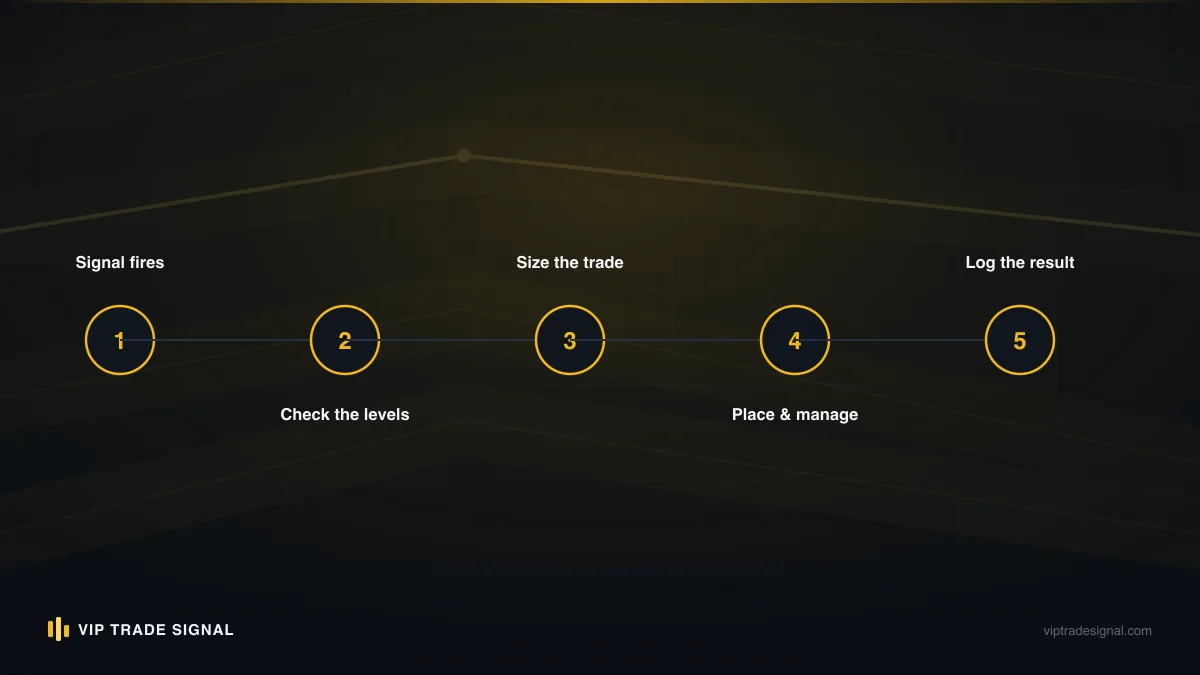
Fragment of an answer: the same way every time. The traders who make execution mistakes are almost always improvising, half-remembering which box is which. The ones who don't have a fixed sequence they could run blindfolded. Direction, size, entry, SL, TP, confirm. Build the sequence once, then never vary it.
Desktop MT4: placing a market order from a signal
Here is how to execute a signal on MT4 when the signal says "buy now" or price is already inside the entry zone. Start to finish, this should take you under thirty seconds once practised.
- Find the symbol. In the Market Watch panel (Ctrl+M if it's hidden), locate XAUUSD. Careful here: many brokers list several gold symbols, XAUUSD, XAUUSDm, XAUUSD.r, GOLD, depending on account type. Trading the wrong suffix means trading on an account type you don't have, or a symbol with different contract terms. Check with your broker once, then favourite the correct one.
- Open the order window. Double-click the symbol, press F9, or right-click the chart and choose Trading, then New Order.
- Set the volume first. Before anything else, type your lot size. We put this second in the window's layout but first in the sequence deliberately, because it's the field with the most expensive default: MT4 remembers your last-used volume, and if your last trade was a demo punt at 1.0 lots, that's what's sitting there now.
- Confirm the order type says Market Execution.
- Type the stop loss. From the example signal: 3,353. Type it as your broker quotes it, usually 3353.00, and watch the field, some brokers quote gold to two decimals, others to three, and a misplaced decimal turns 3353.00 into 335.30, which MT4 will reject, or worse, into a number it accepts.
- Type the take profit. One field, remember. Standard practice for a three-TP signal: either enter TP3 and plan to take partials manually at TP1 and TP2 (more on that below), or enter TP1 and manage the rest by hand. Pick one approach and stick with it. Splitting the position into two or three separate orders, each with its own TP, is the cleanest solution of all, if your size allows it.
- Click Buy or Sell. Read the button before you click it. Buy is on the right in MT4's default layout, sell on the left, and after a few hundred trades your hand will move before your brain does. Buying a sell signal is the single most common catastrophic execution error we hear about, and it's always a fast hand on the wrong big button.
Then, and this step is not optional, look at the Trade tab and confirm what you actually have: direction, size, SL and TP populated. An order without a stop loss in a fast gold market is not a trade, it's a hostage situation.
Desktop MT4: pending orders for entry zones
Most decent gold signals give a zone, not a single price, because gold moves too fast for "enter at exactly 3,344.00" to be honest. If price hasn't reached the zone yet, you have two options: sit and watch the chart like a hawk, or place a pending order and go make dinner. Pendings win.
MT4 gives you four pending order types, and the naming trips everyone up at first, so here is the plain-English version:
- Buy limit — buy below current price. Price falls into your zone, you get filled. Use for buy signals where the entry zone is under the market.
- Sell limit — sell above current price. Use for sell signals where the zone is above the market. Our example signal, if gold is trading at 3,338 and the sell zone is 3,342–3,346, wants a sell limit.
- Buy stop — buy above current price, for breakout-style entries.
- Sell stop — sell below current price, same idea downward.
The memory trick that finally made it stick for one of our juniors: limit orders wait for a better price, stop orders chase a worse one. A limit fills when the market comes to you; a stop fills when the market runs away and you jump on.
Mechanics: open the same New Order window, but switch the Type dropdown from Market Execution to Pending Order. New fields appear: the entry price and an optional expiry. For a zone entry, we generally place the pending in the middle-to-far portion of the zone, so for 3,342–3,346 on a sell, somewhere around 3,344–3,345, accepting that some trades will fill at the near edge and a few will miss entirely. Missing a trade costs nothing. Chasing one costs plenty.
Set the expiry. This is the part every guide skips and every trader learns the painful way. A gold signal has a shelf life measured in hours, not days; the analysis behind a 3,344 sell is stale by tomorrow's session. An unexpired pending order from Tuesday firing into Thursday's news candle is a trade nobody chose. We set expiries to the end of the trading day, or delete pendings manually when the provider calls the setup off, whichever comes first. If your signal provider says "cancel the sell zone", the pending must die within the minute.
Enter SL and TP in the same window, exactly as with a market order. They'll attach automatically when the pending fills, which is precisely why pendings are safer than watching and clicking: your stop exists from the first millisecond of the position's life.
Setting SL and TP correctly in the order window
This section is short because the rules are short, and it exists because the mistakes here are the expensive kind.
Rule one: SL and TP are prices, not distances. New traders coming from other platforms sometimes type "90" into the SL field meaning ninety cents of room, and MT4 politely tries to set a stop loss at $90.00 gold. The platform will reject the obviously absurd, but a stop of 3,335 on a sell from 3,344, entered when you meant 3,353 because you grabbed the TP number, is not absurd to the platform. It's just a stop on the wrong side of a coin flip.
Rule two: know which side each level lives on. For a sell: SL above entry, TPs below. For a buy: SL below, TPs above. Say it out loud if you have to. When MT4 throws "Invalid S/L or T/P", nine times in ten you've put a level on the wrong side of price, and the tenth time you're inside the broker's minimum stop distance, usually a few dozen points on gold, meaning your level is too close to the current price to be accepted. Widen it slightly or wait a moment.
Rule three: enter the SL before the TP, every trade. If you get interrupted, disconnected, or fat-finger the confirm halfway through, you want the protective level to be the one that made it in. A position with an SL and no TP is a plan missing its bonus. A position with a TP and no SL is a grenade missing its pin.
And a word on the psychology, since it leaks into mechanics: the temptation, once a position is open and moving against you, to nudge that SL a little wider "to give it room" is close to universal and almost always ruinous. We covered why in what following signals does to your head territory, but the mechanical defence is simple: the stop the provider published goes in at entry, and modifying it is a deliberate act you do for a stated reason, not a reflex you do from pain.
Gold contract sizes: the lot field trap
Here is the trap that empties more small accounts than any other single field in the platform, so we're giving it its own section and asking you to read it twice.
On most brokers, one standard lot of XAUUSD is 100 ounces of gold. That means a $1.00 move in the gold price changes a 1.0-lot position by $100. A 0.10 lot moves $10 per dollar. A 0.01 lot, the usual minimum, moves $1 per dollar of gold movement.
Now do the arithmetic that the order window will never do for you. Our example signal risks about $9 of price distance (entry 3,344, stop 3,353). At 0.01 lots that's $9 of account risk. At 0.10 lots, $90. At 1.0 lots, $900. The lot field doesn't know your balance. It will let a $500 account sell 1.0 lots of gold with a straight face, and if margin allows the order, the platform considers its job done. Free margin permitting a trade and the trade being sane are two entirely unrelated facts.
The specific traps, in descending order of carnage:
- The remembered volume. MT4 and MT5 both pre-fill the last lot size used. Last week's 0.50 on a different pair is this week's default on gold. Check the field every single time, even when, especially when, you're in a hurry.
- The forex instinct. Traders who learned on EURUSD carry over a feel for what 0.10 lots means. On gold, with its dollar-a-minute swings, that feel is miscalibrated by roughly an order of magnitude. Gold at 0.10 lots on a quiet day moves like EURUSD at 0.50 on a wild one.
- The nonstandard contract. A minority of brokers, and many cent or micro account types, use contract sizes other than 100 oz. Right-click the symbol in Market Watch, choose Specification, and read the Contract Size line before your first trade with any broker. Sixty seconds, once, ever.
- The decimal slip. Typing 0.1 when you meant 0.01 is a 10x position. Fat thumbs on a phone keyboard make this a mobile speciality, which is one reason the next section matters.
Our standing rule on the desk, and the one we give every subscriber who asks: work out the lot size from your risk before opening the order window, using risk amount divided by stop distance divided by $100 per lot. A $2,000 account risking 1% has $20 to spend; on a $9 stop that's 0.02 lots, and the arithmetic took ten seconds. The order window is where you type the answer, never where you decide it.
MT5 mobile: full execution walkthrough
Now the platform most of you will actually use. Knowing how to execute signals on the MT5 mobile app matters more than desktop skill for the simple reason that signals don't wait for you to be at a desk; gold setups fire during commutes, lunch breaks and school runs, and the median follower reads the alert and trades it from the same device inside two minutes.
The app is genuinely fine for this. Better than fine, in the current versions. Here is the full sequence, and we'd suggest running it three or four times on a demo account today, before a live signal makes it a timed exam.
- Quotes tab. Bottom navigation, leftmost icon. If XAUUSD isn't in your list, tap the plus icon top-right, search for it, mind the suffixes again, and add it.
- Tap the symbol, then Trade. You land on the order screen: chart preview, buy and sell prices, and the fields you need.
- Order type selector, top of the screen. It defaults to Market Execution. For zone entries, tap it and pick the pending type, same four core types as MT4, plus MT5's two stop-limit extras you can keep ignoring.
- Volume. Front and centre, adjusted with plus/minus steppers or by tapping the number and typing. The steppers usually move in 0.01 increments but some broker configurations step by 0.1, so type the number rather than tapping toward it. Everything from the previous section applies with extra force here, because the pre-filled remembered volume on a phone screen is small, grey, and criminally easy to ignore.
- Stop Loss and Take Profit fields. Tap each and type the price. The app shows a small red or blue marker on the chart preview as you type, and this is the mobile app's best feature: you get a visual sanity check that your stop is on the correct side and roughly where the signal drew it. Glance at it. If the SL marker is below a sell entry, you've typed the wrong number.
- For pendings: the Price field and expiry. Same logic as desktop, mid-zone placement, same-day expiry. The expiry selector is tucked behind the order type on some versions; it exists, find it.
- The big red and blue buttons. Sell is red and on the left, buy is blue and on the right. The button shows the live price on it, one last chance to notice the market has moved away from the signal's zone while you were typing. Then tap once, deliberately.
- Confirm on the Trade tab. Middle of the bottom navigation. Your position should be listed with SL and TP visible in its row. If either column shows a dash, fix it now, using the modify steps below, not after your meeting.
Two mobile-specific habits worth building. First, turn off in-app one-tap trading (a later section explains why). Second, enable push notifications for order events, so a pending order filling at 3 a.m. tells you about itself; a position you don't know you have is a position you can't manage.
Modifying SL and TP on an open position
Signals evolve. A provider worth following will send updates: "move SL to breakeven", "SL to 3,338, protecting profit", "close early, momentum gone". Executing an update is a different mechanical skill from opening the trade, and it's the one people fumble most under pressure, because updates arrive mid-move when the chart is alive and the heart rate is up.
Desktop MT4. Find the position in the Terminal's Trade tab (Ctrl+T). Right-click it, choose "Modify or Delete Order". A window opens with the current SL and TP; type the new values and click the long modify button at the bottom. That button, in classic MT4 fashion, stays greyed out until the values you've entered are valid, which confuses everyone the first time. Greyed out means "your level is on the wrong side or too close to price", not "broken". Alternatively, if you have the levels shown on the chart, drag the SL or TP line directly to the new price. Dragging is faster and easier to get wrong by a few dollars; typing is slower and exact. For a breakeven move, where three dollars of imprecision can be the difference between scratch and loss, type.
MT5 mobile. Trade tab, then either long-press the position or tap it (varies by version and platform) and choose Modify Position. Same fields, same rules: type the new SL, check the chart marker, confirm. The modify screen also shows current profit on the position, which is informational and also a temptation. You came here to move the stop to where the update said. Move it there. Not five dollars wider because the position is down and hope is cheap.
One genuine platform quirk: if price is within the broker's minimum stop distance of your intended new level, the modify will be rejected, and during a fast gold move that can happen repeatedly. Breathe, wait for a pause in the tape, resubmit. And if the market is moving so fast you can't get a breakeven stop accepted, closing at market is always available; flat is a position too.
Partial closes for TP ladders, step by step
The three-TP structure of a typical gold signal expects you to bank the trade in slices. The clean way to do that, as mentioned, is opening the position as multiple orders. But most followers run one position, so the partial close is a skill you need, and the good news is that a partial close on MT5 and MT4 is the same operation as a full close with one field edited.
Desktop MT4. Double-click the position in the Trade tab. The order window opens in close mode, with a yellow Close button showing the full volume. Before clicking anything, edit the volume field down to the slice you want out. Running 0.03 lots and TP1 has been hit? Change the volume to 0.01 and click close. You're left with an open 0.02-lot position carrying the original SL and TP, and a banked 0.01-lot profit in your history. Repeat at TP2. The remaining position needs no re-entry of anything; it simply continues, smaller.
MT5 mobile. Trade tab, select the position, choose Close (long-press menu on Android, swipe or tap depending on iOS version). The close screen shows a volume selector defaulting to the full size. Drag or type it down to your slice, then tap the close button, which will confirm the partial volume on its face. The remaining position stays listed with its levels intact.
Three practical notes from years of doing this at speed:
- Plan the slice sizes when you open the trade, not when TP1 hits. A 0.03-lot position splits into three clean 0.01s. A 0.02-lot position cannot be closed in thirds no matter how much you'd like it to; it's halves or nothing. If the signal has three TPs and your size can't split three ways, decide in advance which two levels you're actually using.
- Minimum volume applies to the remainder too. You cannot partially close 0.01 lots. If your total position is the broker minimum, the TP ladder is not available to you, full stop, and the honest play is picking a single TP, usually TP2 as the compromise, and letting the order run to it.
- After a partial, many traders move SL to breakeven on the remainder. Whether you should is the provider's call and your plan's, not a universal law. But if the update says to, you now know both halves of the mechanics: partial close, then modify.
There is a small accounting side effect worth knowing so it doesn't spook you: each partial close books its slice as a separate closed trade in your history. One signal, executed with two partials and a final TP, shows as three history lines. That's normal, and it's also one honest reason why a follower's account statement never looks identical to a provider's published record. Results differ between followers of the same signals for mechanical reasons like fills, timing, and partial structure, before anyone even gets to the dishonest reasons some services exploit, which we pulled apart in our piece on fake profit screenshots.
One-click trading: convenience against fat-finger risk
Both platforms offer one-click trading: buy and sell buttons living directly on the chart, firing market orders at the preset volume instantly, no order window, no confirmation. Scalpers love it. For signal followers, we'll be blunt: turn it off.
The case for it is speed. The case against is everything else. One-click orders go out with no stop loss and no take profit; you're expected to attach them afterwards, which means every trade begins its life unprotected, in the fastest-moving retail metal there is. The volume is whatever the little box on the chart says, which is whatever it said last time, which you will eventually not check. And the buttons sit exactly where an idle click lands when you're moving the chart around with a coffee in the other hand. Every desk has a story about a phantom one-click position discovered minutes later, and the stories where it was discovered in profit are rarer than the other kind.
Signal execution is not a speed problem measured in milliseconds. It's measured in tens of seconds, and the full order window, with SL and TP attached before the position exists, fits comfortably inside that budget. The professional version of fast is a practised sequence with no rework.
If you insist on keeping one-click enabled, at minimum set the default volume to your broker's minimum lot, so an accidental fire is a nuisance rather than an event. But really. Turn it off.
Checking your fill: spread, slippage and requotes
The order confirmed. You're not quite done, because the price you got is not always the price you clicked, and on gold the difference is worth checking every time.
Spread is the standing gap between the buy and sell price, and on XAUUSD it ranges from around 10–20 cents on good raw-spread accounts to 35–50 cents or worse on standard accounts, stretching to several dollars around major news. You always pay it: a buy fills at the ask, and the position opens showing a small loss equal to the spread. That's normal, not an error. What it does mean is that a signal's levels, quoted off the mid or bid price, sit very slightly differently on your account, and a TP missed by 30 cents on a standard-account spread is a mechanical outcome, not a conspiracy. Our subscribers on partner brokers ask about this constantly, enough that it has its own entry in our FAQ.
Slippage is the market moving between your tap and the broker's fill. In market execution (all of MT5, most modern MT4 accounts), you get filled at the best available price, which might be a few cents better or worse than quoted. Routine slippage on gold is cents; slippage during a news spike can be dollars. If a signal fires seconds before a red-calendar release, the honest options are a pending limit order, which cannot fill at a worse price than you set, or sitting the trade out. Chasing a market order into a news candle is donating.
Requotes are largely a fossil, surviving on older instant-execution MT4 accounts. If you're seeing requote dialogs regularly in 2025, the fix isn't a technique. It's a better account type or a better broker.
The habit to build: after every fill, glance at the open price in the Trade tab and compare it against the signal's entry zone. Inside the zone, carry on. Outside it, you now hold a trade with worse maths than the one that was published, and the disciplined response is deciding, right then, whether the stop distance still fits your planned risk, resizing or closing if it doesn't.
Common execution errors and the live fixes
Everything above, condensed into the situations you'll actually face, phone in hand, market moving. Screenshot this section if you screenshot anything.
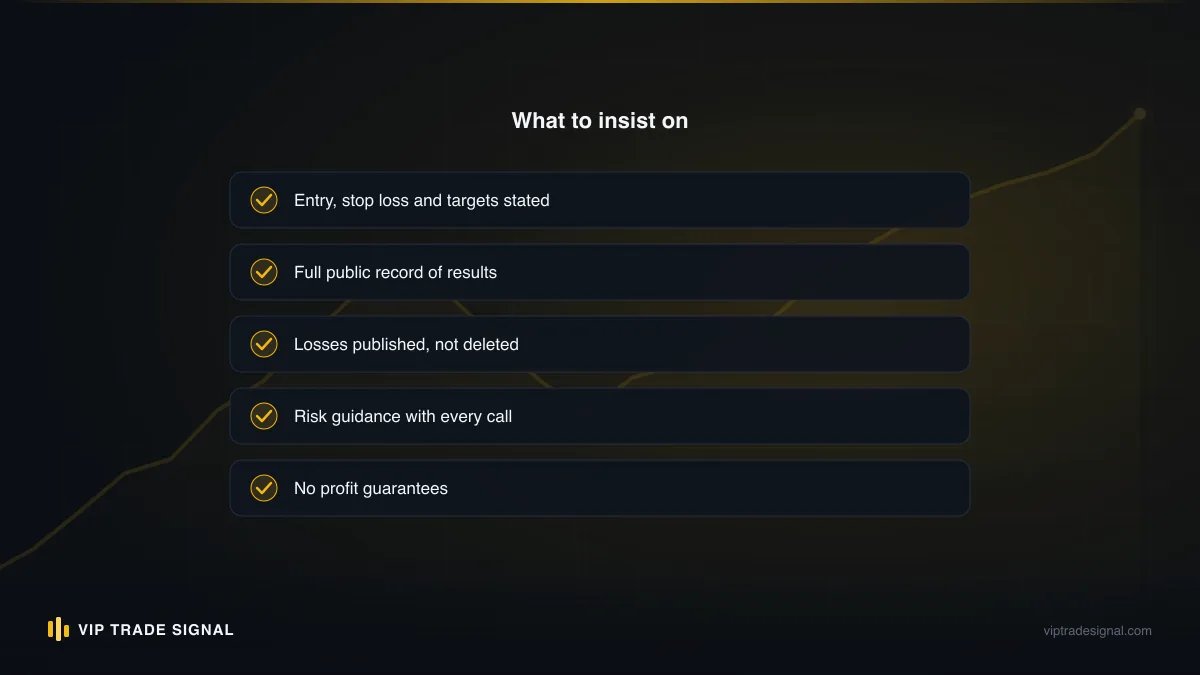
- "Invalid S/L or T/P." Your level is on the wrong side of price, or inside the broker's minimum stop distance. Check the side first: SL above entry for sells, below for buys. If the side is right, you're too close; adjust by a dollar or wait for price to move off.
- "Not enough money." Margin insufficient for the volume. Do not fix this by finding the biggest volume that squeezes through, that number is a margin limit, not a risk decision. Recompute the lot size from your risk. If the risk-correct size doesn't meet the broker minimum, the trade is not available to your account today, and skipping it is the win.
- Wrong direction, noticed immediately. Close it at market, now, before the "maybe it'll come back" voice finishes its sentence. Cost: the spread and a bruise. Then place the correct trade if the zone still holds. The error is cheap for exactly as long as you act on it.
- Opened without a stop. Modify the position this minute and attach it. If the market is running hard against you and the modify keeps rejecting, close at market. No open gold position goes unstopped, not for lunch, not for a phone call.
- Pending order filled overnight, forgotten. Push notifications were built for this. Enable them today. When it happens anyway, treat the discovered position like a fresh signal review: is the setup still valid per the provider's latest update? If they've since called it off, close.
- 10x the intended volume. Partial-close it down to the intended size immediately, using the exact mechanics from the partial-close section, don't flatten the whole thing in panic if the trade itself is one you wanted. Then find which habit failed, the pre-filled volume check, almost always, and repair the habit.
- Platform frozen or connection dropped mid-trade. Your SL and TP live on the broker's server once set, which is the deepest reason this guide harps on attaching them at entry: they protect you through every crash, dead battery and tunnel. Positions "protected" only by an alert on your phone are protected by nothing.
Speed drills: from signal to order in under a minute
Execution speed comes from repetition, not urgency. Here is the drill programme we give new subscribers, and it costs you three evenings on a demo account.
Evening one, market orders. Write yourself five fake gold signals with entries near the current price, stops $6–$12 away, three TPs each. Execute each as a market order with the full sequence: volume computed on paper first, SL before TP, confirm in the Trade tab. Time yourself. First one takes three minutes. Fifth takes ninety seconds.
Evening two, pendings and modifications. Five more signals, all with zones away from price, executed as limit orders with expiries. Then, on whichever ones fill, practise the update drills: move SL to breakeven, tighten a TP, delete a pending. This evening teaches the skill people most often lack live, which is calm modification of an open position.
Evening three, partials and errors on purpose. Open a 0.03-lot demo position and close it in three slices. Then deliberately make the errors: enter an SL on the wrong side and read the rejection, fire a wrong-direction trade and unwind it, set a one-click order and repair it with a modify. Rehearsed errors don't spike your heart rate. Unrehearsed ones do.
Under a minute from reading the signal to a confirmed, stopped, sized order is a realistic standard for anyone after those three evenings, on either platform, desktop or phone. Faster is possible and unnecessary. The signals worth following have zones precisely because to-the-second speed shouldn't decide the outcome.
Where this leaves you
The uncomfortable truth about signal following is that the provider controls maybe half the result. The analysis, the levels, the updates, that's their half, and you can judge ours in public at the signal history any day you like, losses included. The other half, sizing, entry discipline, stop placement, partials, update execution, happens in an order window you control alone, and no provider on earth can reach into your terminal and fix a 1.0-lot fat-finger. Plenty of people have paid for good signals and lost money on execution. Nobody notices when the reverse happens, because clean execution of mediocre signals mostly just loses slowly and politely.
So here's the pointed question to close on. Could you, right now, phone in hand, take the example signal from the top of this article, compute the lot size for 1% risk on your actual balance, and have a stopped, sized sell limit working in under a minute? If yes, you've extracted everything this article has. If not, you have three demo evenings between you and yes, and there is no better use of a signal-following week than spending it before your money is on the line. Trades will still lose after all this. Gold doesn't care how tidy your order window habits are. But they'll lose the planned amount, the wins will actually reach your balance, and every result on your statement will be the trade you chose, executed the way you meant. That's the whole job.